USB security has two different jobs: protecting the files carried on a removable drive and controlling which removable devices may access a Windows PC. This guide explains built-in encryption, USB Secure for portable password protection, and USB Block for device restriction and data-leak control.
Editorial Team•Updated Aug 2026•11 min read
Quick Answer
Use USB Secure when the data on the portable drive itself needs password protection. The supplied product material describes installing the application on the USB drive, protecting the drive with a password, opening protected files through its interface or Virtual Drive, and using it on another Windows PC without installing the program there or requiring administrator rights. Use USB Block when the goal is different: prevent unauthorized USB drives, external storage, discs, network locations, or non-system drives from accessing a Windows computer, while allowing approved devices through an Authorize List.
Before changing anything on a flash drive, decide what you are actually trying to protect. Password-protecting files on a removable drive and blocking removable devices from a computer are related security tasks, but they require different controls.
Protect data carried on the drive: choose drive encryption or portable password-protection software. USB Secure is positioned for USB flash drives, external drives, memory sticks, memory cards, thumb drives, pen drives, and similar removable media.
Control what can connect to a Windows PC: choose endpoint device control. USB Block is designed to restrict unauthorized USB and external drives and can also control other storage, network, and non-system drive access.
Know the operating-system boundary: the supplied USB Secure and USB Block material documents Windows use. Do not treat either product as a native macOS password-protection tool.
Back up important files first: make a verified copy before enabling encryption, changing drive formats, or testing a new protection workflow.
Plan password ownership: decide who is responsible for the password and whether your installed USB Secure version offers any secondary recovery mechanism before relying on it for irreplaceable files.
Free / Built-in Approaches
Method 1: Native OS Encryption
Built-in operating-system tools are useful when you do not need the USB Secure or USB Block workflows. They are best suited to users who remain inside one operating-system ecosystem.
Windows: BitLocker to Go
Supported Windows EditionsBuilt In
BitLocker to Go encrypts removable drives and can require a password before the volume is opened.
Connect the USB drive to the Windows PC.
Open This PC, right-click the removable drive, and choose Turn on BitLocker where available.
Select password-based unlocking and create the password.
Store the recovery key somewhere separate from the USB drive.
Select the encryption scope and complete the encryption process.
Best fit: encrypting the whole removable volume on compatible Windows editions. It does not provide USB Block-style device authorization or logging.
macOS: Disk Utility encrypted formats
macOSMay Require Reformatting
On Mac, Disk Utility can create an encrypted removable volume. This is a native macOS route rather than a USB Secure workflow.
Back up the contents of the USB drive.
Open Disk Utility and select the removable device.
Choose an encrypted Mac-compatible format.
Create and verify the password.
Complete the erase/format operation and restore the files afterward if necessary.
Best fit: users who primarily work on macOS. If the drive must move through Windows environments, plan compatibility before formatting it.
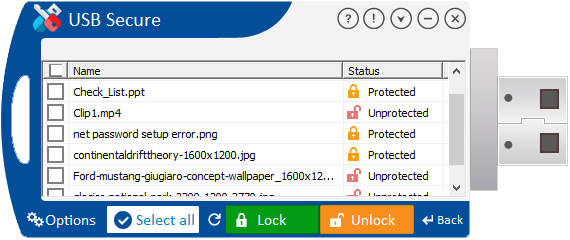
USB Secure is the product in the supplied material that directly addresses password protection for portable storage. It is presented as a Windows application that can be placed on the removable drive itself so the protected drive can be opened on another Windows PC without installing the program on that host computer.
The documentation covers USB flash drives, external drives, thumb drives, memory sticks, memory cards, pen drives, and related portable media. It also describes plug-and-play behavior and compatibility references for FAT/FAT32/NTFS, with another product page also naming EXFAT.
How USB Secure works
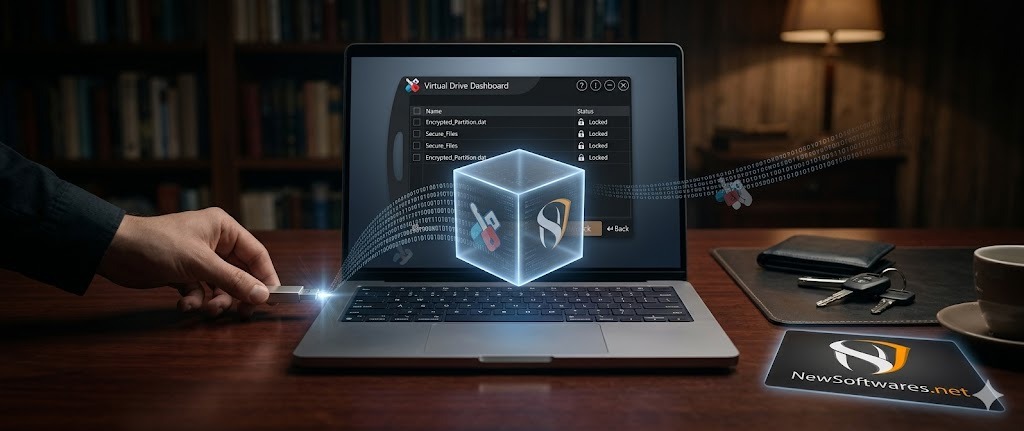
The setup places USB Secure on the removable drive. You then run the application from that drive, set a password, and protect the data. When the drive is used later, the application can be launched from the USB drive and authenticated with the password. The supplied documentation also describes a View Locked Files option that opens a Virtual Drive so protected files can be viewed or worked with without fully exposing the rest of the protected data.
Primary job: password-protect data stored on removable media.
Portable workflow: the software resides on the USB drive and the source material says no separate host installation is required to access protected data.
Administrator rights: the supplied material says administrator privileges are not required on the other computer for the portable protection workflow.
Virtual Drive: protected files can be accessed through a mounted virtual area instead of fully unprotecting the whole drive.
Platform note: the attached material documents Windows, including compatibility references through Windows 11 as well as older Windows versions and Windows Server editions.
USB Secure vs USB Block: Choose by Security Goal
These products solve different problems. USB Secure protects data on the portable drive. USB Block protects a Windows computer from unauthorized devices and data-transfer paths. Many security-conscious Windows environments may benefit from using both layers for different purposes.
> Need to protect files if the drive is lost? → USB Secure
> Need to stop unknown drives copying PC data? → USB Block
> Need trusted devices to connect without repeated prompts? → USB Block Authorize List
> Need to inspect protected files without fully unlocking? → USB Secure Virtual Drive
Compare at a glance:
USB Secure
USB Block
Protects USB and other portable-media data with a password
Runs from the removable drive for portable access on Windows PCs
Offers Virtual Drive access to protected files
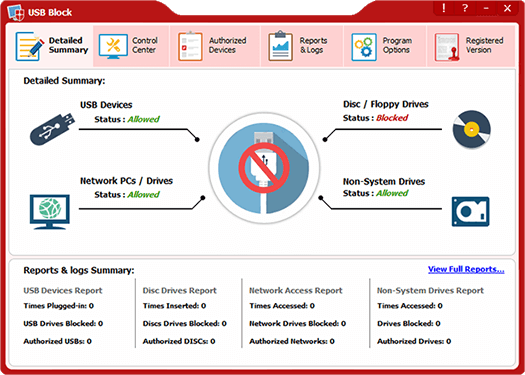
Blocks unauthorized USB/external devices and other configured data paths
Allows trusted devices through an Authorize List
Records invalid password, deletion, and uninstall attempts in its monitoring features
The right choice depends on whether you need volume encryption, portable password protection, or device access control.
Capability
BitLocker to Go
Mac Disk Utility
USB Secure
USB Block
Primary purpose
Encrypt removable volume
Encrypt Mac-formatted volume
Password-protect portable-drive data
Restrict device/data-path access
Documented Windows use
Documented native macOS use
Password-protect data on USB drive
Portable app on the USB drive
Virtual Drive for protected files
Block unauthorized removable devices
Authorize trusted devices
Device-attempt monitoring/logs
Step by Step
How to Password Protect a USB Drive with USB Secure
The supplied USB Secure how-to material describes a direct, portable setup: install USB Secure onto the flash drive, run it from the drive, create a password, and protect the data.
Back up important files. Keep a separate copy before applying protection.
Connect the flash drive to a Windows PC. Confirm that Windows recognizes the device normally.
Install USB Secure onto the removable drive. The product documentation describes running its setup and placing the application directly on the USB drive.
Launch USB Secure from the drive. If AutoPlay is enabled, the documentation describes an option to protect the USB drive; otherwise the application can be opened directly from the removable drive.
Create and confirm the password. Use the protection command and save a strong password you can reliably retain.
Access protected data later. Reconnect the drive, launch USB Secure, authenticate, and either open/unprotect the drive as needed or use View Locked Files to open the secure Virtual Drive.
Relock after making changes. If you fully unlock files to add, delete, or modify data, restore protection before removing the drive.
Security Check
USB Security Risk Assessment
Use this quick check to decide whether you mainly need drive-level password protection, stronger endpoint device control, or both.
1. Do you carry confidential work, financial, customer, or personal records on removable drives?
Yes, frequently
Sometimes
Rarely or never
Question 1 of 3
Advanced USB Security Practices
Use password protection and device control for different risks
USB Secure is focused on protecting data stored on removable media. USB Block is focused on preventing unauthorized removable devices and configured storage or network paths from accessing a Windows computer. Protecting the drive does not automatically control every device that may connect to the PC, and blocking a device does not encrypt the files carried on an approved drive.
Authorize trusted devices instead of disabling every USB port
The USB Block material describes an Authorize List. Once a trusted storage device is added, it can receive access without repeatedly requesting the program password, while other devices remain restricted. This is useful when a PC must support approved work drives without allowing every removable device.
Monitor attempts and restrict more than flash drives
USB Block documentation extends beyond basic USB flash-drive blocking. It describes control for external drives, memory cards, media discs, network access, and non-system drives, along with records of invalid password attempts, unauthorized uninstall attempts, and program deletion attempts. The same material also describes Stealth Mode, Safe Mode protection, and a hotkey for reopening the application while hidden.
Fix Common Issues
USB Secure Access & Password Troubleshooting
Protected files do not appear in File Explorer
That can be expected when the files are protected. The supplied USB Secure instructions describe launching the application from the removable drive, entering the password, and using View Locked Files to open a secure Virtual Drive containing the protected files.
Confirm that USB Secure is present on the removable drive.
Launch the USB Secure application directly from the drive if AutoPlay does not appear.
Enter the password and choose the option for viewing locked files or unprotecting the drive, depending on what you need to do.
If you fully unprotect files to edit them, restore protection before disconnecting the drive.
Changing the USB Secure password
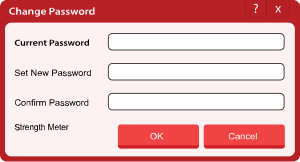
The supplied documentation describes opening USB Secure, authenticating with the current password, opening Options, entering the current password, then entering and confirming a new password before saving the change.
Forgotten-password recovery: check your exact version
The attached USB Secure material is internally inconsistent on this point. One how-to page describes an optional Master Key that can provide secondary access if a regular password is forgotten, while several file-protection FAQs state that there is no master key or backdoor and that forgotten-password data becomes inaccessible. Because those statements conflict, do not assume recovery exists. Check the options and documentation for the exact USB Secure version installed on your drive before relying on a recovery method.
USB Block keeps prompting for a device you trust
If the device is meant to be permanently trusted, the USB Block material describes adding it to the Authorize List. Authorized devices are then allowed access automatically until they are removed from that list.
Frequently Asked Questions
Common Questions About USB Secure and USB Block
USB Secure password-protects data carried on USB and other portable media. USB Block restricts unauthorized devices and configured data-transfer paths from accessing a Windows PC, and it can allow approved devices through an Authorize List.
The supplied product material says the application is placed on the USB drive itself and does not need a separate installation or administrator rights on the other Windows PC used to access protected data.
Yes. The documentation describes a View Locked Files option that opens a Virtual Drive for accessing protected files without fully exposing the entire protected area.
The attached USB Block material describes controls for USB and external drives, memory cards and portable devices, optical media, network access, and non-system drives. The administrator can choose the categories to restrict.
Yes. USB Block includes an Authorize List in the supplied documentation. Devices placed on that list are treated as trusted and can be allowed without the normal password prompt.
The attached product material documents Windows downloads and Windows compatibility for both products. For native Mac USB encryption, use a macOS-supported approach such as an encrypted Disk Utility format or another product whose current documentation explicitly supports macOS.
NewSoftwares USB Security
Two Complementary USB Security Layers
USB Secure
For protecting the files and folders carried on USB drives, external drives, memory sticks, memory cards, and other portable media with password-based access.
Choose USB Secure when portable files need password protection, USB Block when unauthorized devices need to be restricted, or combine both approaches when your Windows workflow needs protection on both sides of the USB connection.